Penny Rounding on the POS Register and Reporting in Back Office
Penny Rounding on the POS Register and Reporting in Back Office
This article explains how the Cash Rounding (Penny Rounding) feature works on the Franpos Register, how to configure it, and how rounding transactions are reflected in Back Office reporting.
⚠️ Prerequisites
Register Version must be V 6.1.4 or higher
-
If your Register is on an older version, update it using the instructions in the Register update article
⚠️ Important: Create a “Rounding” Payment Method
Before enabling Cash Rounding, you must:
-
Log in to Franpos Back Office.
Create a Custom Payment Method labeled:
Rounding - This payment method is required when a customer provides less cash than the total transaction amount.
If you do not have permission to create custom payment methods, please contact your Corporate office for assistance.
Enabling Cash Rounding on the Register
-
Open Settings on the Franpos Register.
Enable the following toggles:
Below are the steps on how to handle this case in Two Different Scenarios
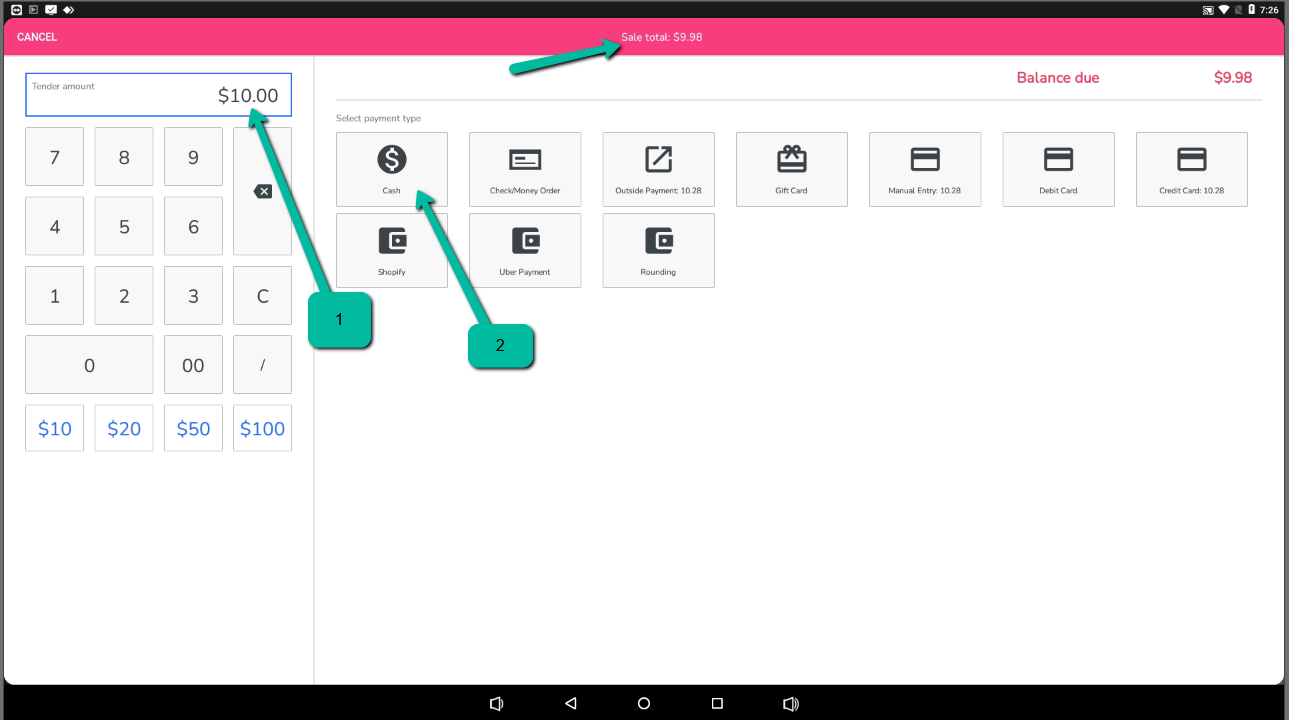
When the Shopper Provides Less cash than the Actual Transaction amount.
Example:
Transaction Amount: $9.98
Tendered Amount: $9.95
In this scenario, the system will reflect an outstanding balance of $0.03. The employee should select the Rounding payment method to adjust and complete the transaction.
This is how it Reflects in Back Office - Daily Close Out Reporting
"Rounding" under Payment Type Break Down
---------------------------------------------------------------------------------------------------------------------------------------------------------------------------------------------------------------------------
When the Shopper Provides More Cash than the Actual Transaction Amount
Condition - Cash Round Up is enabled.
Example 1 :
Transaction Amount: $9.98
Tendered Amount: $10
Example 2
Transaction Amount: $9.96
Tendered Amount: $10
Close Drawer
Back Office Report - Daily Close Out
This information is also found under Reports - Close Day - Drawer Entry
If your State or Local Regulations Prohibit Rounding Up - Disable Cash Round Up Toggle
Example:
Transaction Amount: $9.98
Tendered Amount: $10
Since your store does not want to round up to the nearest $0.05, the system prompts to return $0.05 to the shopper.
Example 2
Transaction Amount: $9.96
Tendered Amount: $10
Since your store does not want to round up to the nearest $0.05, the system prompts to return $0.05 to the shopper.
Close Drawer
Daily Close Out Report
Related Articles
Franpos October 2024 Web 6.8 update
You can press on the images/animations to zoom in and make them bigger Release date October 15th, 2024 New Features FPW15208 Booking: Added a feature to update the prices of future appointments and add-ons. This is available under Booking Settings > ...
Tickets - View (Back-office)
The back office features a section where all synced tickets from the POS displayed. Receipts can be printed from this section. Tickets Select date by Quick date or Start and End Click ‘Generate’ The table should appear on your store sales Using ...
Default Browser for the Back Office
Inside the Register application, you can choose how the Back Office button opens. There are two available options: Chrome Browser (Recommended) – Better performance, but may be not available on all devices. Built-In Browser (Legacy) – Older embedded ...
Enabling Multi-location Store Pickup
In this article you will learn how to enable and set up Multi-location Store Pickup. First, navigate to back office Settings >> Delivery settings (direct link https://my.franpos.com/DeliverySettings ) In Delivery Settings, scroll down to Pickup ...
How to Define Idle Time Out for Register and Back Office
How to Define Idle Time Out for Register and Back Office Sync your Register

