eCommerce - Open Orders
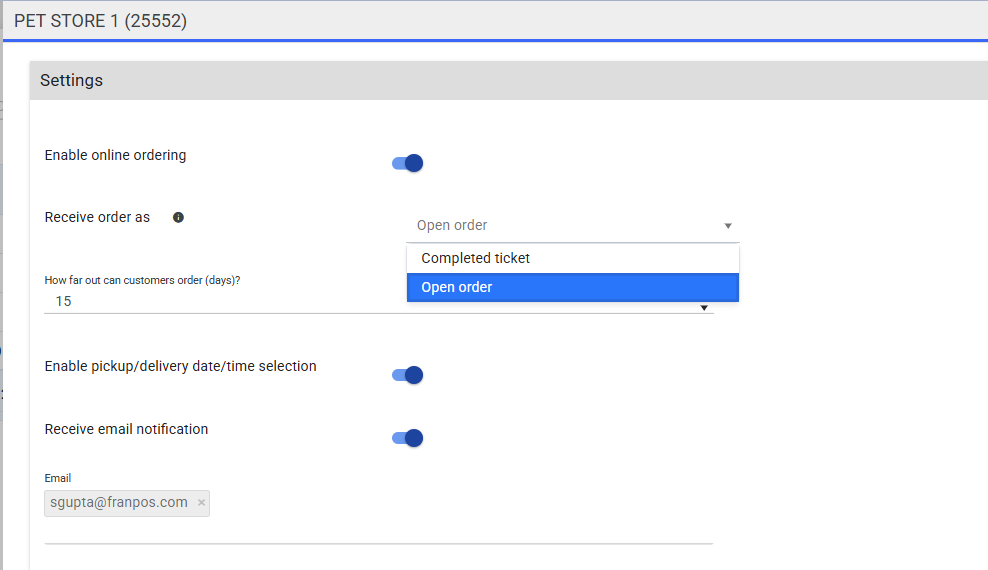
Franpos currently provides two options for processing online eCommerce orders:
- Complete Ticket – Payment is finalized immediately during checkout, and the order cannot be edited on the POS.
-
Open Order – A pending order where the customer’s payment details are securely tokenized.
The store can review, accept, decline, and modify the order on the POS before finalizing payment.
How Open Order Works
The customer places an order online using the standard eCommerce flow: selecting items, adding them to the cart, and proceeding through checkout as usual.
The key difference happens at the final checkout step. Instead of charging the customer immediately, Franpos securely tokenizes the customer’s credit card. This token is then used later on the POS to complete the payment.
When a customer places an Open Order through eCommerce, the POS receives a notification and the order appears on the Pickup tab.
From the Pickup tab, the store can preview the order and then choose to accept or decline it.
Accepting or Declining the Order
If the store declines the order:
The order is declined and the customer is not charged, order is voided.
If the store accepts the order:
The POS redirects the user to the cart, where the order can still be adjusted before payment is finalized.
At this stage, you can:
- Replace an item
- Remove items that are out of stock
- Adjust quantities
- Make other necessary modifications based on store or customer needs
After selecting the Charge button, Franpos will suggest the customer’s tokenized credit card as the payment method.
Additional Notes
- In the Open Order model, inventory is deducted only when the customer is charged, not when the customer initially places the order request.
- When a customer enters a card on eCommerce, Franpos does not capture payment and does not place a hold on funds. The card is only tokenized for later use.
- The actual payment is processed on the POS when the store accepts and finalizes the order.
- If the payment fails at the POS (for example, due to insufficient funds), the store can contact the customer and:
- Use a different credit card
- Apply another accepted payment method
- Decline the order
Related Articles
eCommerce Order Fulfillment
In this training, you will learn how to configure your register to receive online order tickets. On your register navigate to Settings >> eCommerce 1. Enable Receive ecommerce orders on this device to be notified with online order tickets. 2. Make ...Set up eCommerce Orders on Your Register Settings
Make sure the delivery set up is done on the back office first: https://support.franpos.com/portal/en/kb/articles/ecommerce-delivery To start receiving eCommerce orders on your register, follow these steps: Step 1: Navigate to eCommerce Settings 1. ...Special Orders
How to Use Special Orders The Special Order feature allows you to create customer-specific orders for items that are not currently available or need to be ordered from a vendor. Special Orders can be used for one-time purchases or recurring ...eCommerce Delivery Setup
In this training, you will learn how to set up delivery and use the delivery app on your mobile device. First, you must ensure that delivery has been enabled for your eCommerce site. To enable delivery: Settings >> Delivery Settings In Delivery, ...Orders Throttling
This article will show you how to Enable Orders Throttling. It will help the kitchen not get overloaded and enable the ability to Auto-Print Kitchen Receipts when eCommerce order arrives Prerequisite - Enabling eCommerce / Having an eCommerce payment ...