How to Change SmartShelves Item Size in the Register App
How to Change SmartShelves Size in the Register App
This article explains how to change the size of your SmartShelves in the Register app.
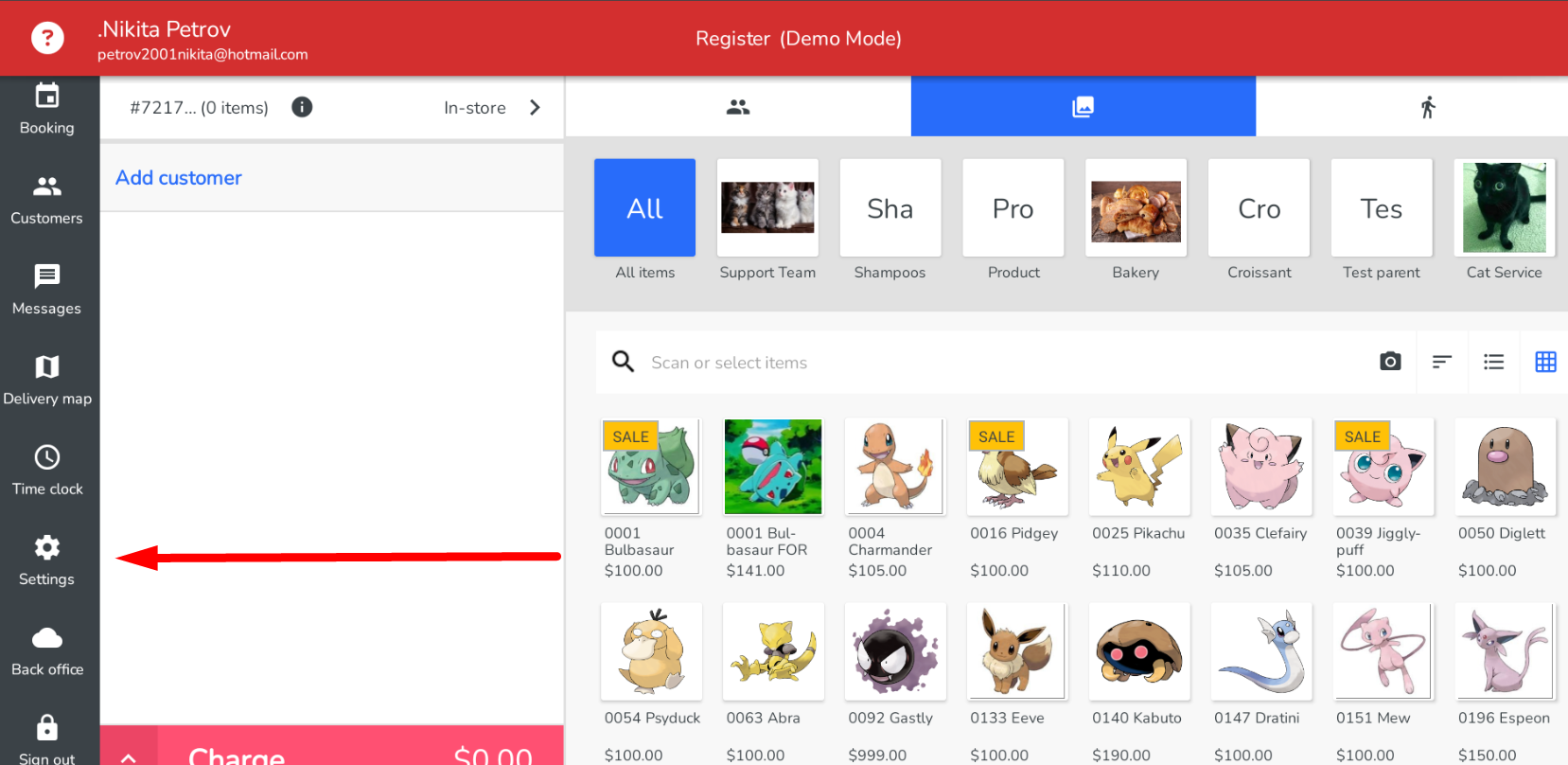
Go to Settings.
Navigate to the Features tab.
Scroll down to the Register section.
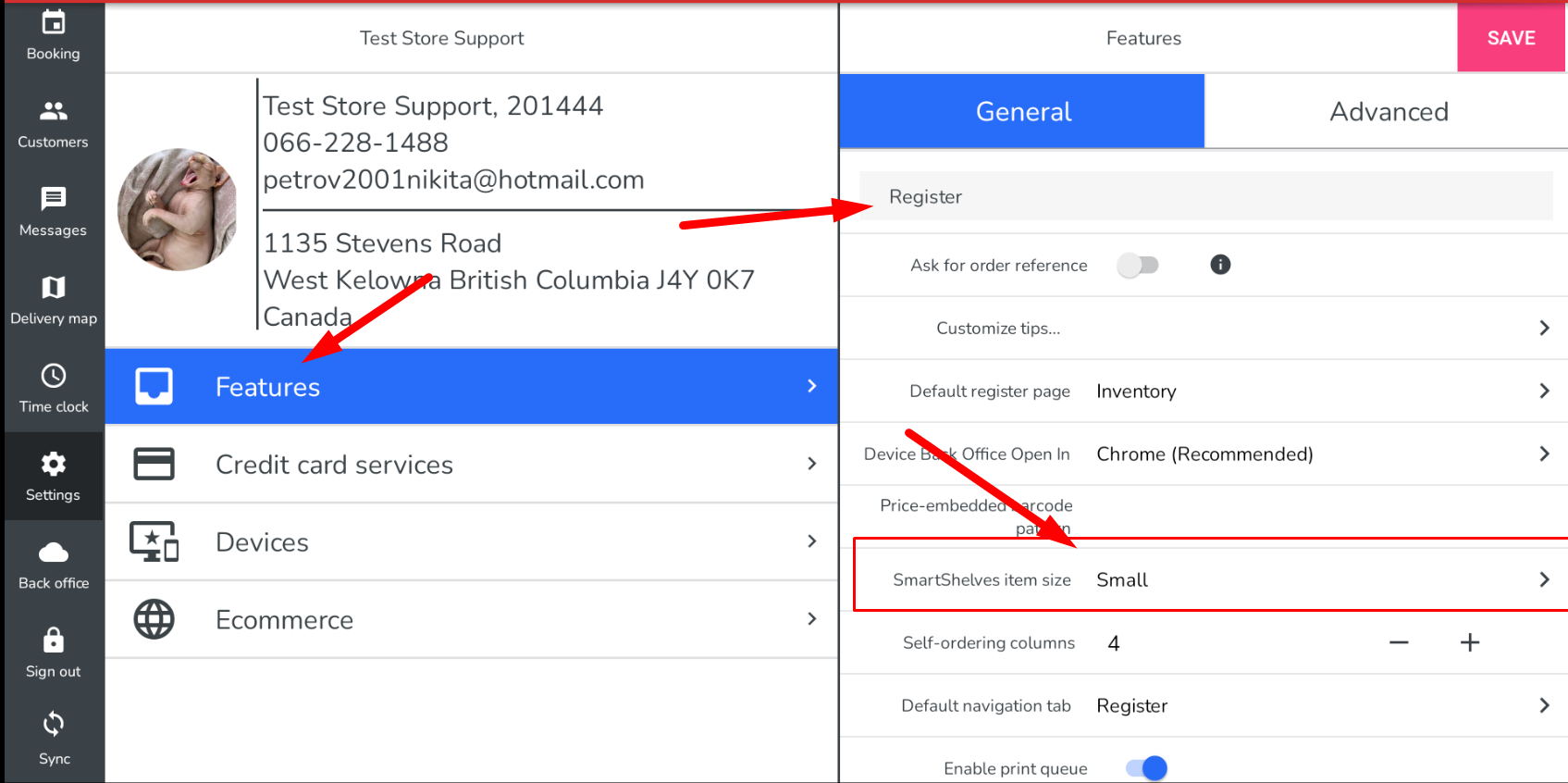
Tap on SmartShelves Item Size.
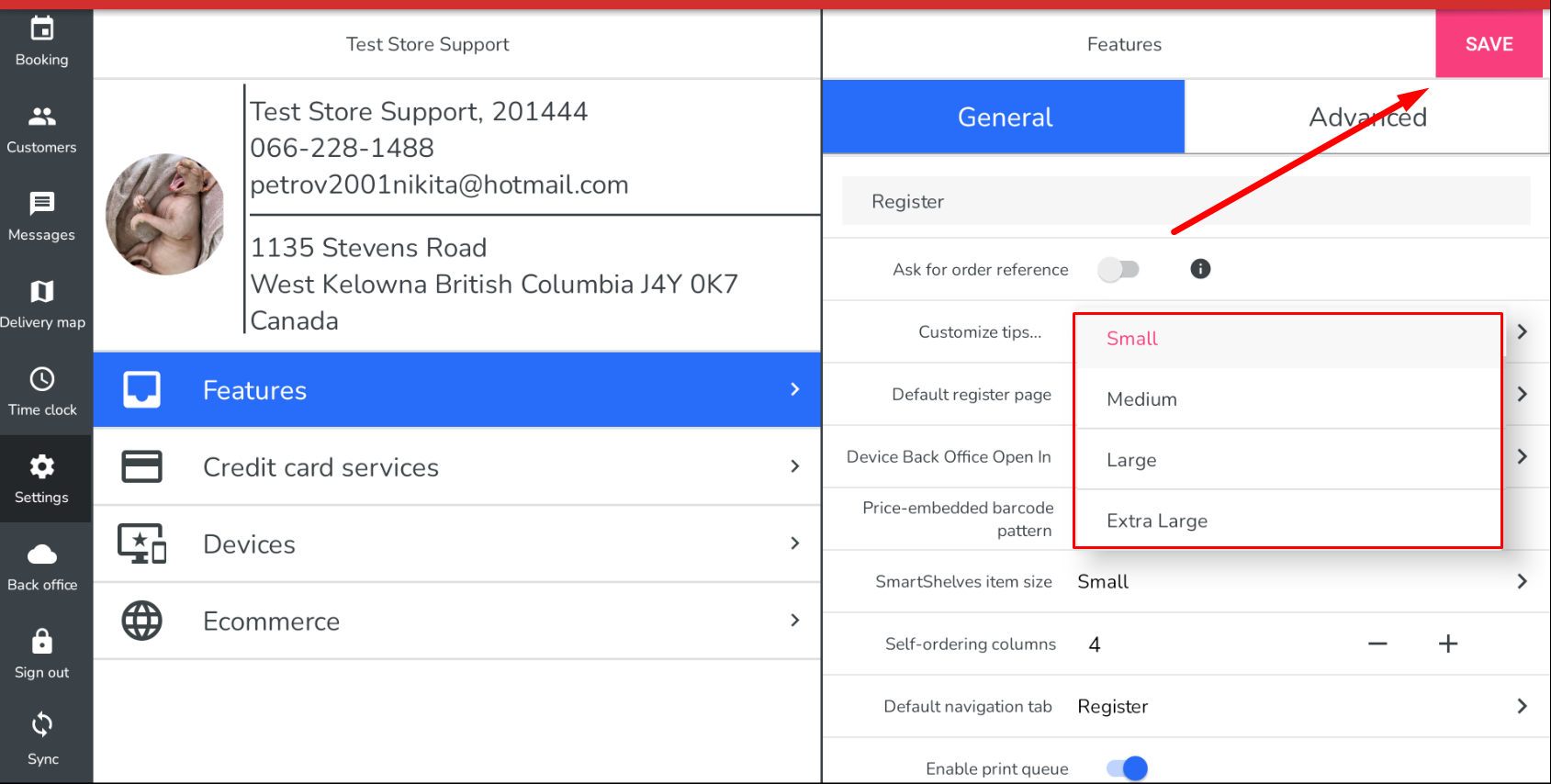
Select your preferred size.
Tap Save.
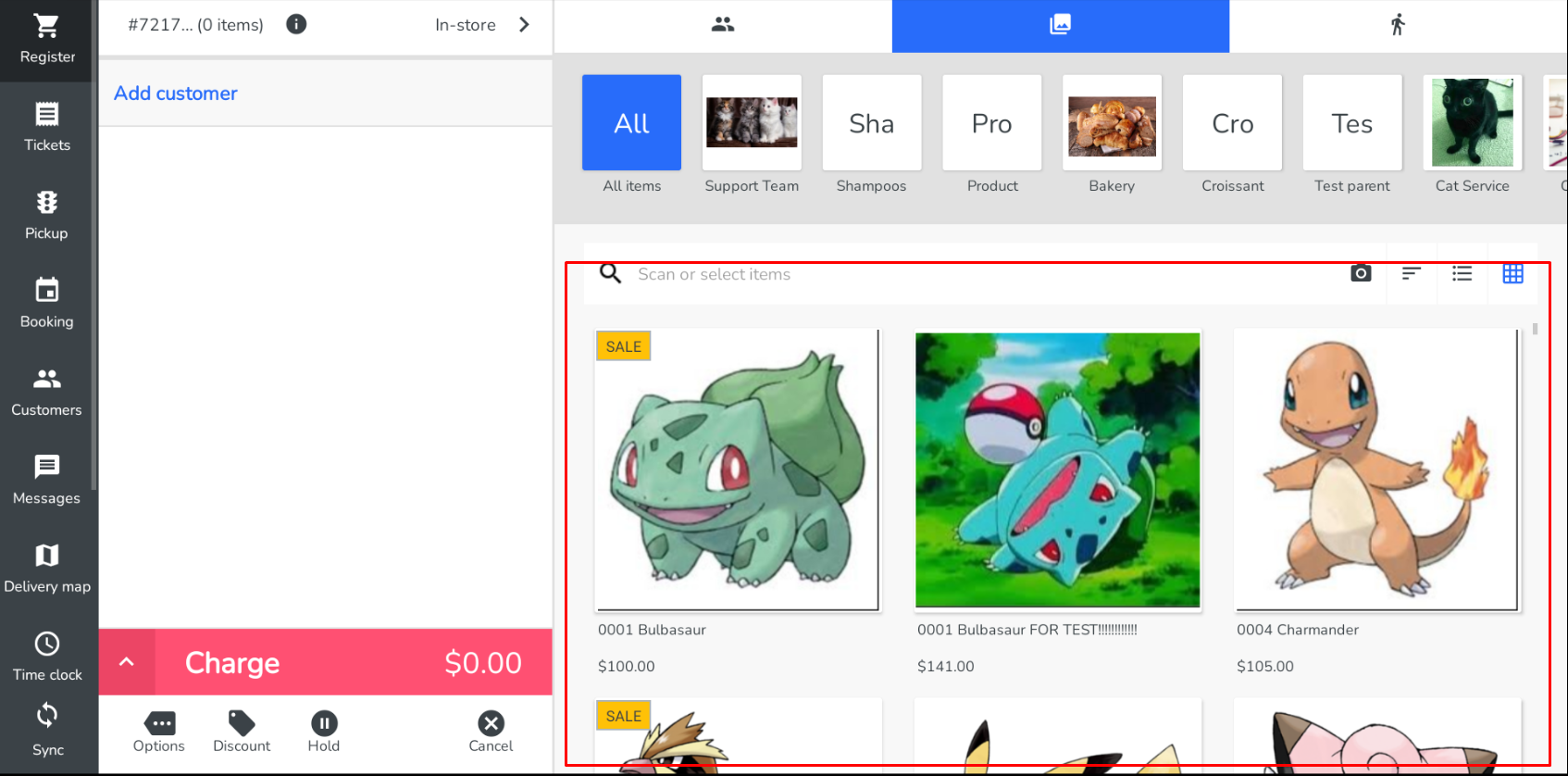
Once saved, the size of the SmartShelves items will be updated.
Navigate to the Features tab.
Scroll down to the Register section.
Tap on SmartShelves Item Size.
Select your preferred size.
Tap Save.
Once saved, the size of the SmartShelves items will be updated.
Related Articles
Increase the font size ICR Register
This applies only to customer's using the Franpos register. In case you feel like the font is too small, you can increase it by adjusting it in the Android settings. 1. Close the register app 2. Go to Settings. 3. Tap on Display 4. Find Font Size and ...Franpos July 2024 Register 4.4 app update
Hello, We are happy to announce our Register 4.4 update for July 2024. Please see the attached PDF at the bottom of the article to see new features in action. New Features FPA-5061 Franpos Printer: Added Ethernet connectivity. FPA-5163 App Update: ...Send LOGS ( Register APP )
Send LOGS ( Register APP ) This article helps you learn how to send logs from the POS Register app to Franpos Team when needed. Logs helps Franpos Team to investigate the issue.Change Pin (self checkout)
Login to FranpPos App and Tap the ‘Self-Checkout’ Button A New screen will appear, this will be the check in the screen that the customer will use upon arrival to the register Next step is you select ‘Account’ a pop notification will appear where you ...Register on Pulse App
In this article, you will learn how to perform and manage a transaction within the Register section of the Pulse application. In order to search for an existing Customer Profile please use the search field. Type in the Phone number, Name etc In order ...