Local Sync: Sync Your Register Tickets
Local Sync allows your Register devices to communicate with each other on the same local network. When enabled, tickets created on one register can appear on other registers in real time.
Local Sync is also used by other features (such as the Walk-In module), but this article focuses on the basic ticket-sync functionality.
How Local Sync Works
Local Sync devices are assigned one of two roles:
- Server — the main device that other devices connect to
- Client — any additional device that connects to the Server
In most environments, you will have one Server and one or more Clients.
While it is technically possible to have multiple Servers on the same network, this is uncommon and not recommended for typical store setups.
 Communication happens through the Server: Client ↔ Server. Multiple Clients can sync via the Server (Client ↔ Server ↔ Client). Direct communication is not supported between Server ↔ Server or Client ↔ Client.
How to Set Up Local Sync
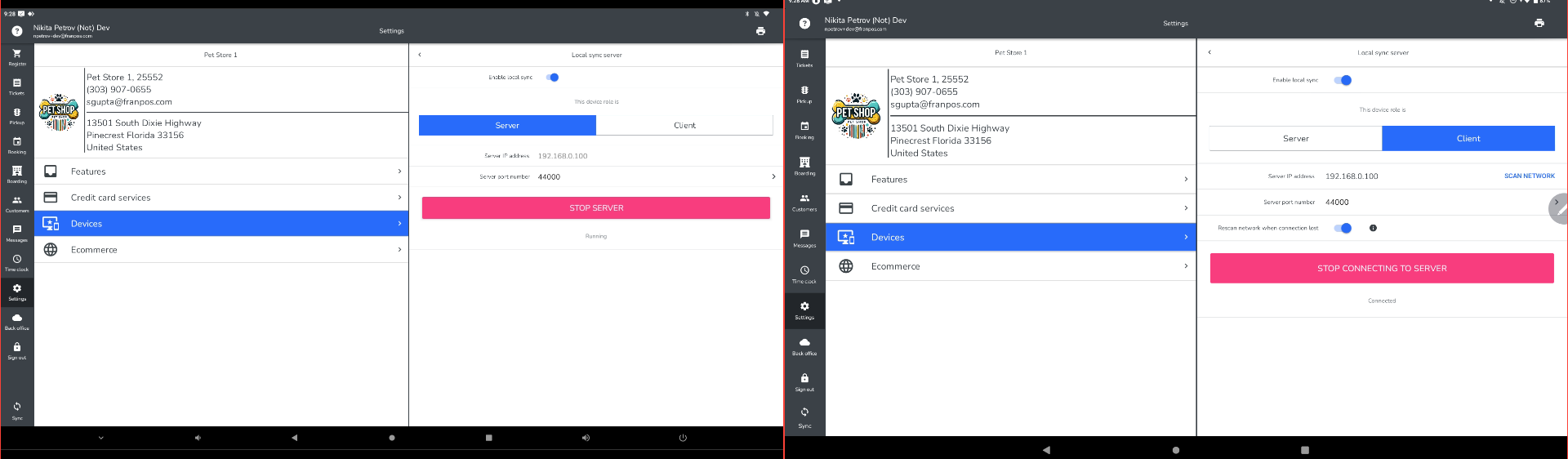
Step 1: Set Up the Server (Main Device)
- On your primary register device, go to:
Settings → Devices → Local Sync Server - Enable the Enable Local Sync toggle.
- Set the role to Server.
- Tap Start Server.
This device will act as the main hub for Local Sync.
Step 2: Set Up Client Devices (Additional Registers)
Repeat these steps on every other register device you want to sync:
- Go to:
Settings → Devices → Local Sync - Enable the Enable Local Sync toggle.
- Set the role to Client.
- Enter the Server IP Address.
- You can find the Server IP on the Server device in the Local Sync settings.
- It may also be available in the Register app under ? → Diagnostics.
What Local Sync Does
Once configured, your registers can share ticket activity in real time.
- If you complete a ticket on Device 1, it will appear on Device 2.
- If you complete a ticket on Device 2, it will appear on Device 1.
Local Sync also works with On Hold tickets:
- Create a ticket on Device 1 and put it On Hold
- Open the same On Hold ticket on Device 2 and complete it
This same behavior applies to ticket operations supported within Local Sync while devices are connected to the same network.


Related Articles
Tickets receive the "On Hold" status.
Scenario 1: After adding an item to the cart, tap the Hold button. The items will disappear from the cart, and the ticket will be set to On Hold status. Scenario 2: After adding an item to the cart, tap Charge, then decline the payment by selecting ...QSR Drive Thru Sync Register Set up
Follow the steps below to enable local sync communication between your DT registers. Local sync should be turned off and kept off at front of house registers. Steps on DT1 (drawer side): On register go to Settings > Devices > Local Sync Server Turn ...Franpos July 2024 Register 4.4 app update
Hello, We are happy to announce our Register 4.4 update for July 2024. Please see the attached PDF at the bottom of the article to see new features in action. New Features FPA-5061 Franpos Printer: Added Ethernet connectivity. FPA-5163 App Update: ...Local Sync orders not communicating between registers
Steps to fix orders not appearing on Hold 1. ON SERVER SIDE: o SELECT (i) o SELECT RESTART o WAIT 30 SECONDS 2. ON CLIENT SIDE: o SELECT (i) o SELECT RESTART 3. ON CLIENT SIDE (IF NECESSARY) o SELECT SETTINGS o SELECT ...Register Sync
In order to sync transactions and customer information to other devices, the system will need to sync. The system will automatically sync every 15 minutes. Additionally, you can manually prompt it to sync the most current information at any time by ...